
1. Create a personal token
Go to Settings then AI access in the web app and create a personal access token. It carries your full Grein access — do not share it with another person.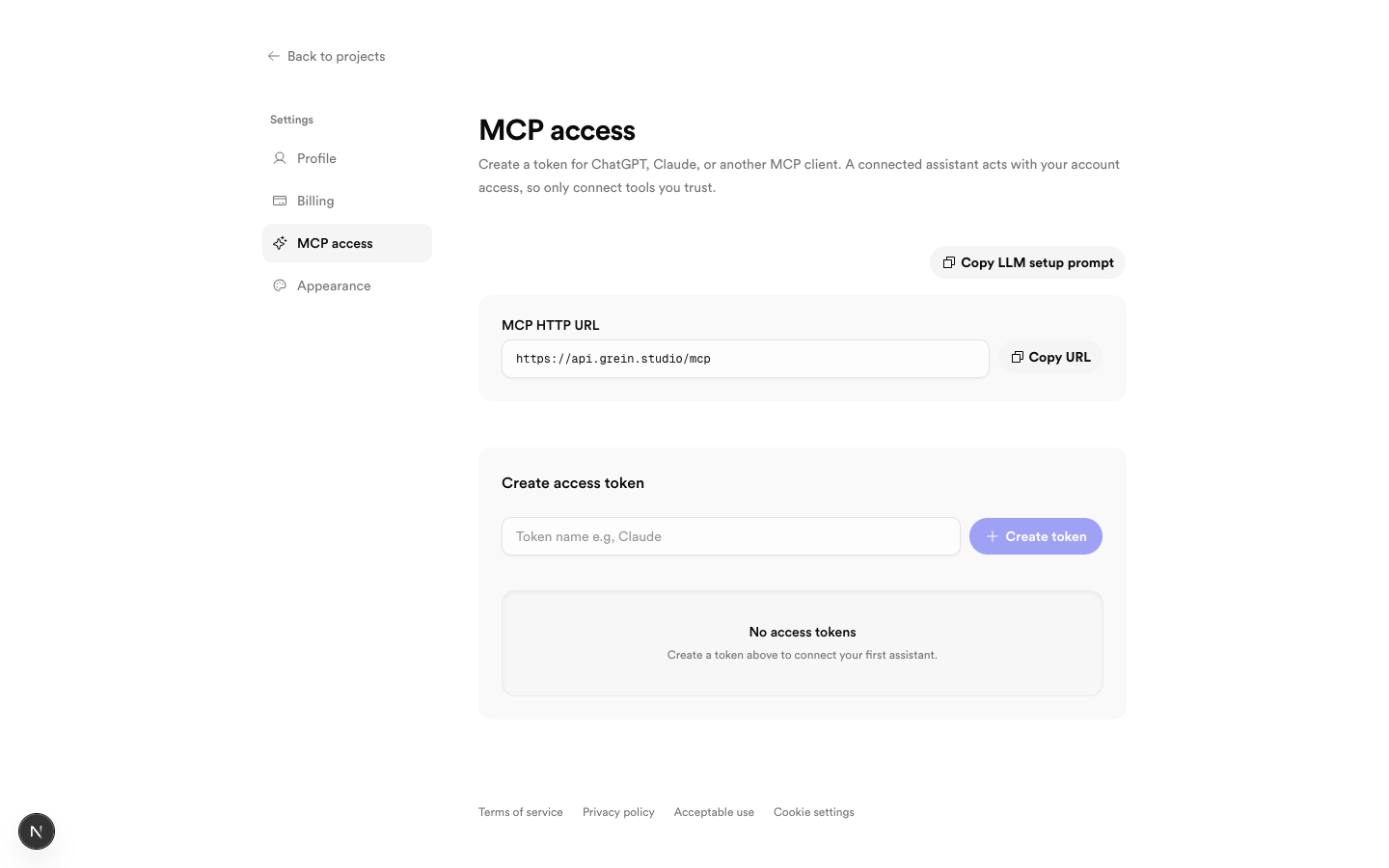 Copy the MCP URL, then create a named personal token
2. Point your assistant at Grein
Server URL:https://api.grein.studio/mcp (Streamable HTTP). Send your token as Bearer auth.
- ChatGPT: add a custom connector in Developer Mode with that URL and Bearer auth using your token.
- Claude Code: from any directory:
/mcp in Claude Code.
- Cursor and other MCP hosts: add an HTTP MCP server with the same URL and an
Authorization: Bearer <your-token>header.
3. What assistants can do
- Confirm your account and list owned and shared projects with your role.
- Read boards, including nested boards and composites.
- Find blocks by content, URL, id, or type.
- Run grouped canvas edits: create, move, resize, edit, delete, connect, duplicate, lock, reorder, and sketch strokes.
- Search Pexels, Freesound, and Spotify media.
- Read and send project messages with references.
Safety
- Every request runs as you against the Grein API.
- Write tools can create, edit, and delete canvases — review changes, and in ChatGPT keep confirmation on.
- Revoking the token takes effect within about a minute.